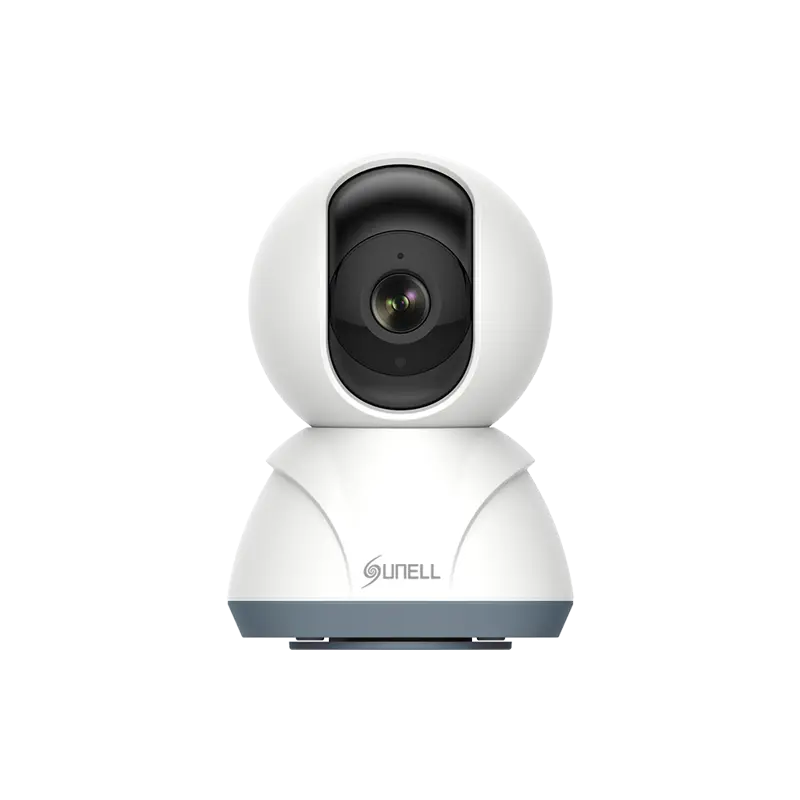


Tout d’abord, nous pouvons examiner l’apparence de l’appareil photo. Normalement, la dimension de l’appareil photo avec objectif fixe est inférieure à celle de l’appareil photo avec objectif à focale variable. Pendant ce temps, la caméra à focale variable a des composants auxiliaires, tels que le contrôle de l’iris, le moteur, l’engrenage. Deuxièmement, nous pouvons nous référer à la spécification de l’objectif. Généralement, la distance focale de l’appareil photo fixe est une valeur fixe, indiquée dans l’image ci-dessous
| , 'Item | , 'Descriptio | , 'Tolérance |
| , 'Distance focal | , '3.6m | ±5% |
| , 'Ouverture (D/f | , 'F2. | ±5% |
| , 'Cercle d’imag | 1/2.7" | >6., 'mm |
| , 'Plage de mise au poin | , '0.3m~IN |
, 'Alors que la distance focale de l’appareil photo à focale variable est une plage de valeur, indiquée dans l’image ci-dessous
| , 'Item | , 'Descriptio | , 'Tolérance |
| , 'F No | , '1. | ±5% |
| , 'Distance focal | , '3.6-11m | ±5% |
| Optical Back , 'Distance focal | , '6.24mm (dans l’air | ±0.1 |
| Mechanical Back , 'Distance focal | , '13.20mm (dans l’air | ±0.1 |
| , 'Cercle d’imag | , ' |
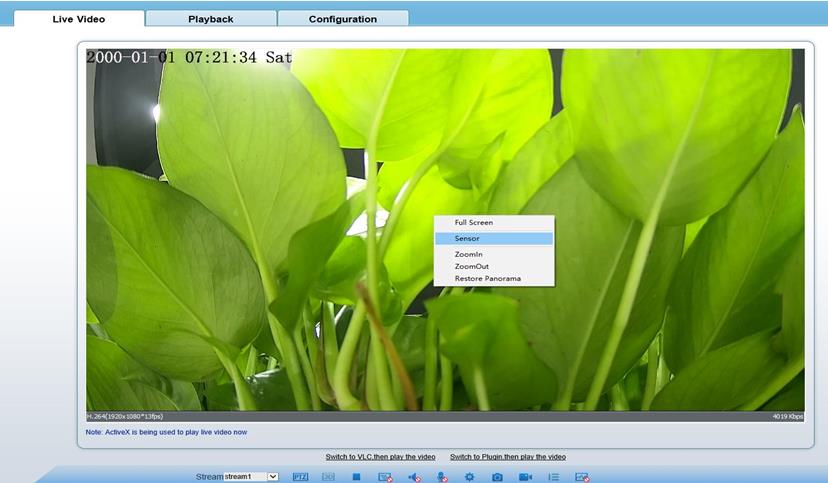
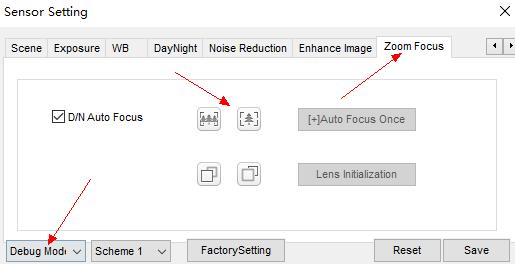
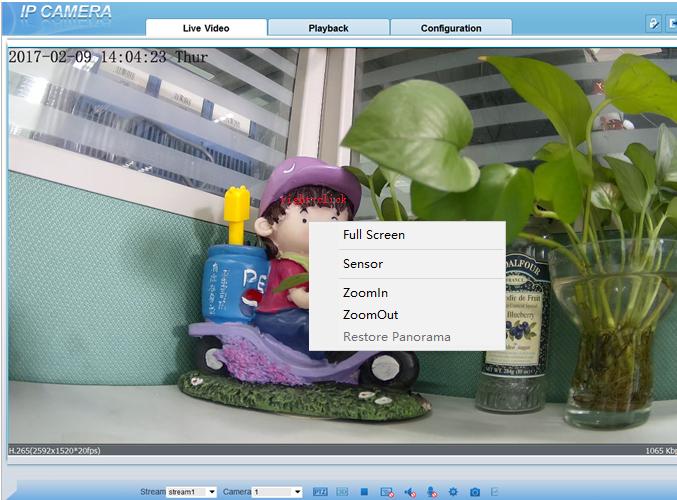
Appelez les paramètres du capteur en cliquant avec le bouton droit de la souris sur la vidéo en direct, passez en mode fixe, puis ajustez la valeur sous Paramètres jour-nuit

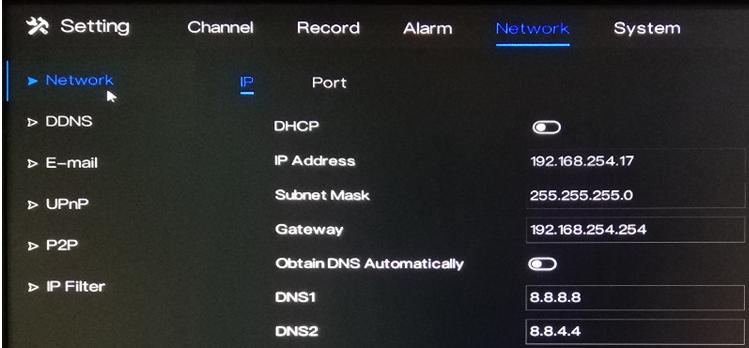
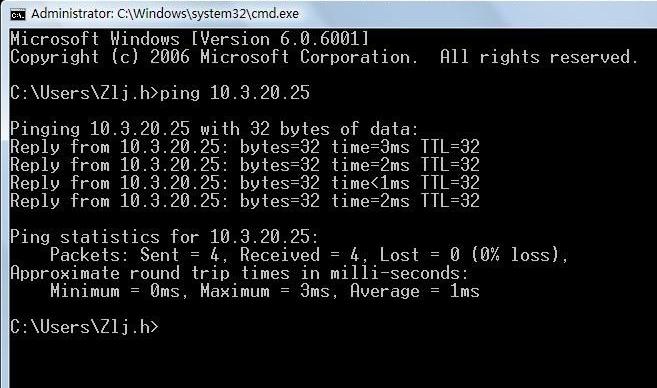
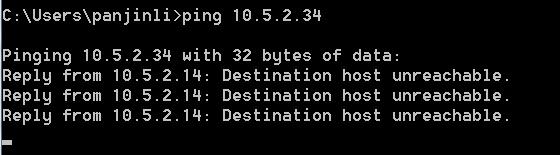
Cela peut être causé par un conflit d’adresse IP, veuillez modifier l’adresse IP d’un appareil
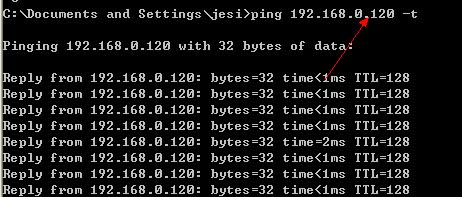
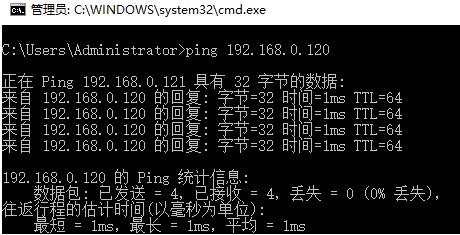
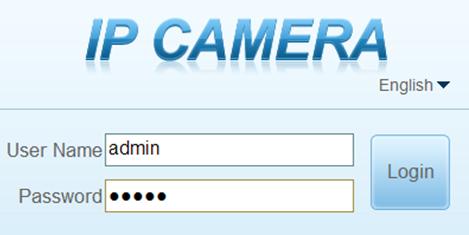
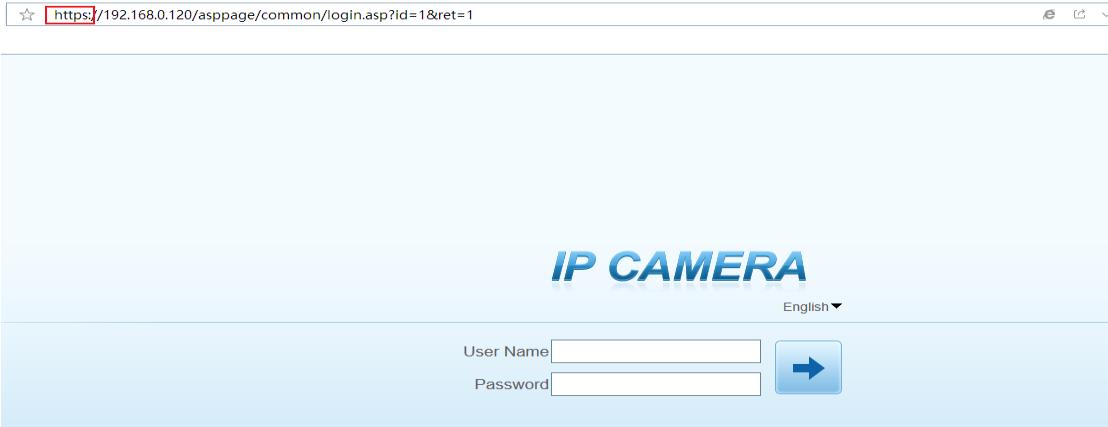
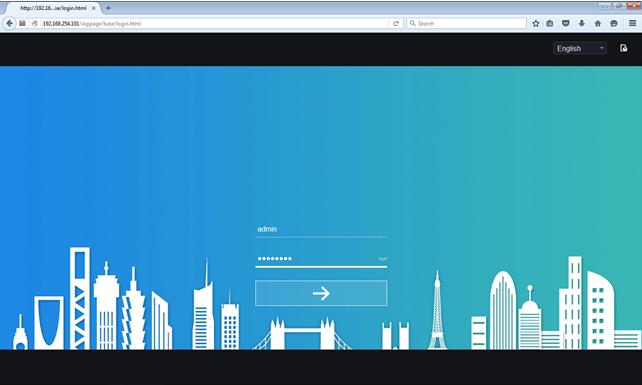
Comme DHCP est ouvert par défaut, si la caméra n’est pas allouée avec IP par le service DHCP, son adresse IP par défaut est 192.168.0.120, et le compte de connexion/mot de passe : admin/admi
Faites un clic droit sur la vidéo en direct, sélectionnez le capteur, passez en mode débogage et réglez-le dans le menu image
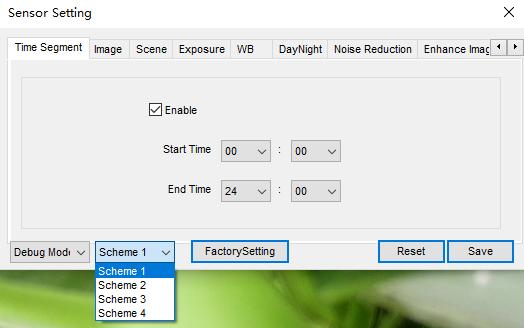
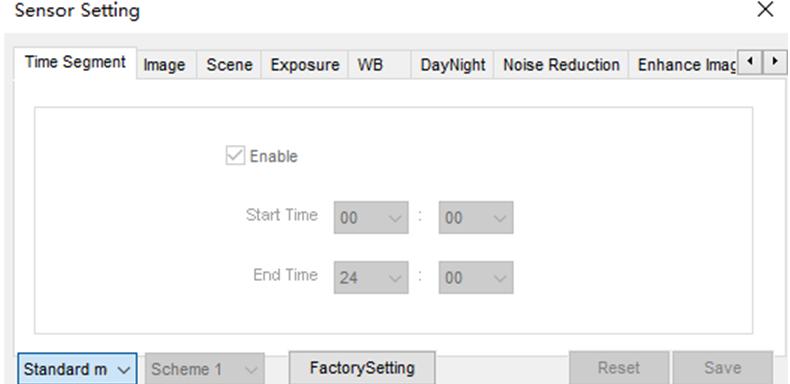
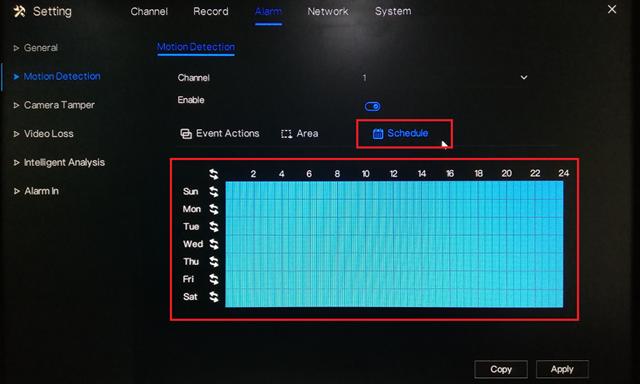
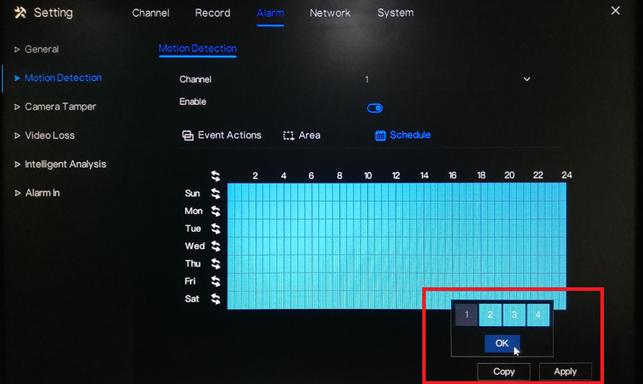
Dans le menu de réglage du capteur, vous pouvez définir au maximum 4 schémas pour le réglage de l’image et la période, Une fois le réglage terminé, repassez le mode en mode standard, puis l’appareil photo appliquera le paramètre d’image en fonction du segment de temps dans lequel il se trouvait, si le temps n’est pas dans ces 4 schémas, il appliquera le réglage par défaut, Si le temps croise deux schémas différents, le schéma précédent fonctionnera
Veuillez vous référer au tableau ci-dessou
, 'Distance focal | , 'Champ de vision (par exemple | , 'Distance recommandée du moniteu |
, '2.8m | , '98.5 | , 'Environ 3 mètre |
, '4m | , '79 | , 'Environ 6 mètre |
, '6m | , '49 | , 'Environ 10 mètre |
, '8m | , '40 | , 'Environ 20 mètre |
, '12m | , '23 | , 'Environ 30 mètre |
1, '6m | , '19.2 | , 'Environ 50 mètre |
, '25m | , '12.4 | , 'Environ 80 mètre |
※Field of view angle varies from different model, refer to the official website for accurate parameter | ||
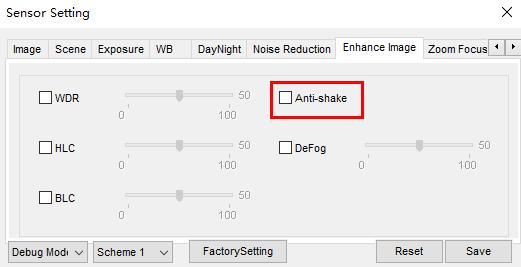
Lorsque la caméra est installée dans des conditions instables (comme au niveau d’un véhicule ou d’un arbre, la fonction anti-tremblement augmente la stabilité de l’imag
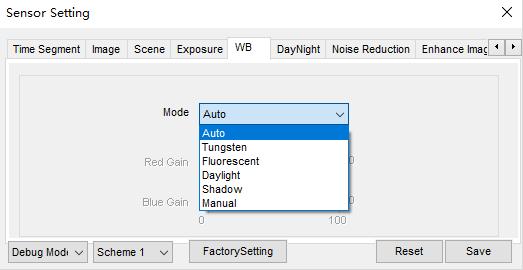
Entrez dans l’interface de réglage du capteur, réglez le mode de balance des blancs dans le menu W
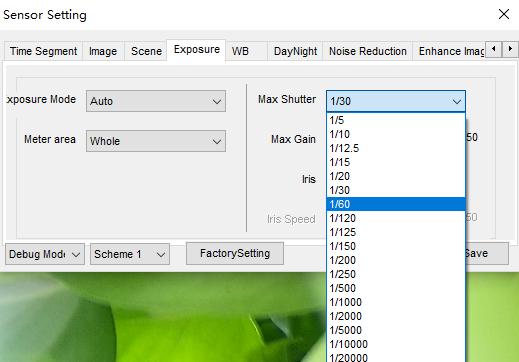
Appelez l’interface de réglage du capteur, ajustez l’obturateur dans le menu d’expositio
1. Assurez-vous que le disque dur est en bon état (vérifiez en le remplaçant par un autre
, '2. Lors de l’accrochage avec plusieurs disques durs, notez que l’alimentation peut répondre à l’exigence, la surveillance du disque dur spécialisé est plus stable avec un courant de démarrage plus petit, une vitesse de travail inférieure et consomme moins d’énergie que le disque dur grand public, si l’alimentation n’est pas suffisante, le disque dur ne pourra pas fonctionner, ce qui entraînera un disque non reconnu et un échec d’enregistrement
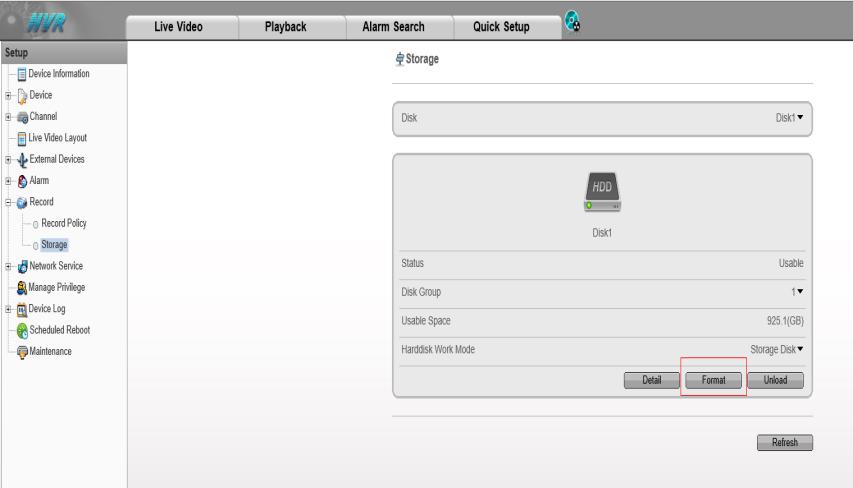
, '3. Si le NVR peut lire le disque, veuillez d’abord formater le disque, car dans la plupart des cas, la répétition de la lecture et de l’écriture générera une fragmentation du disque ou des secteurs défectueux, un processus de formatage sautera ou réparera le secteur défectueux
Oui, il est accessible pour les appareils tiers qui prennent en charge le protocole ONVIF
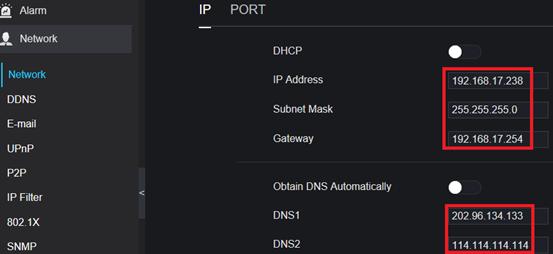
Veuillez connecter le NVR au routeur et assurez-vous que la fonction DHCP du routeur est activée, et ouvrez la fonction d’obtention automatique de l’adresse IP sur le menu de configuration du réseau NVR
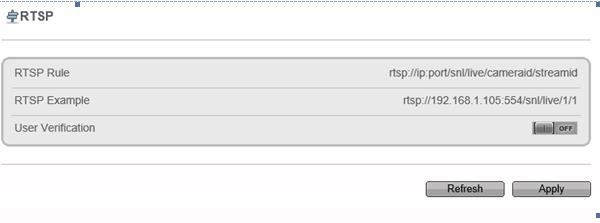
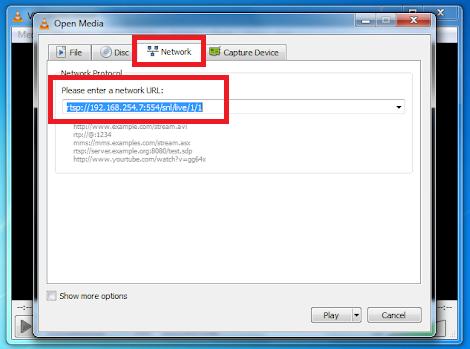
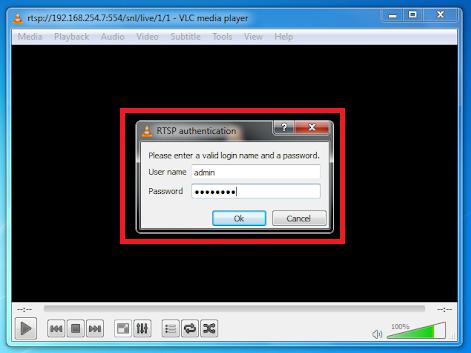
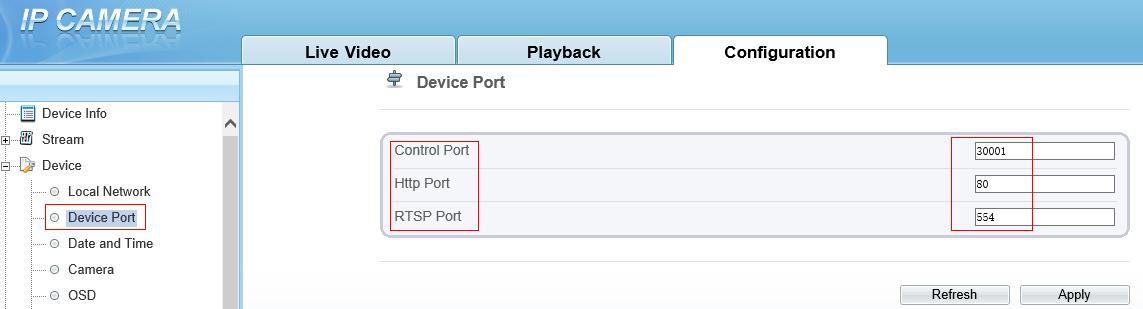
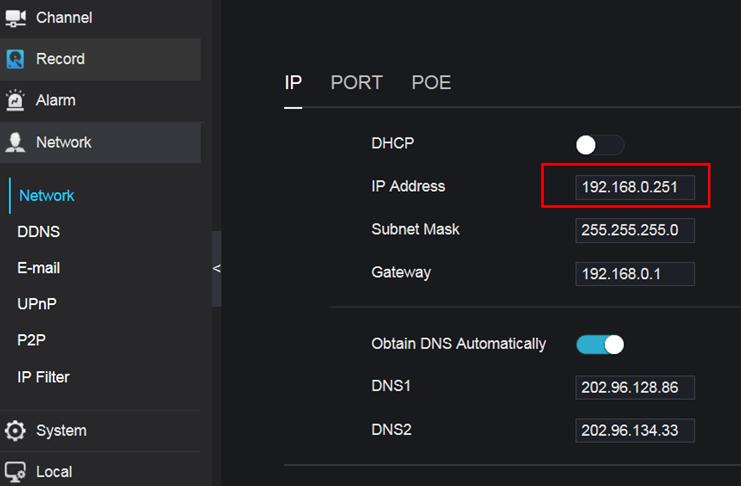
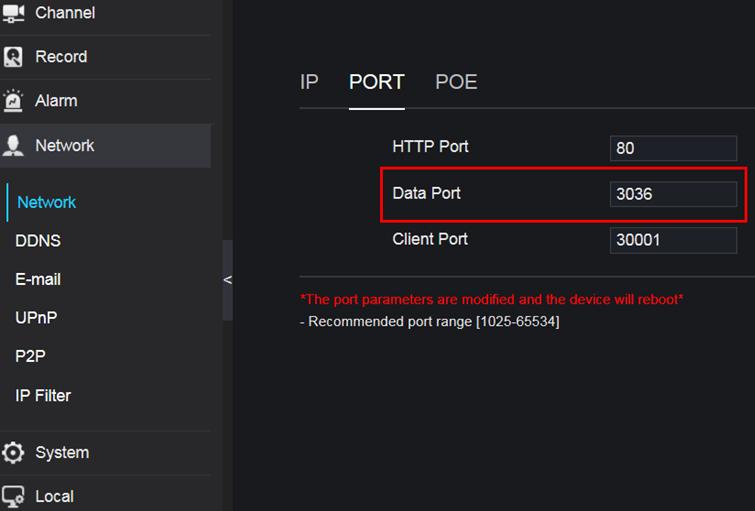
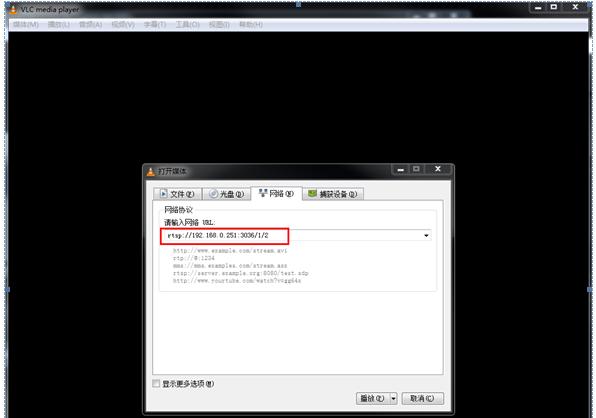
Format RTSP : rtsp ://ip :port/snl/live/cameraid/streami
, 'Exemple : rtsp://192.168.1.19:554/snl/live/1/
1. Veuillez vérifier si le nom d’utilisateur et le mot de passe sont corrects lors de l’ajout de la camér
, '2. problème de câble réseau, veuillez utiliser un câble CAT5e ou CAT6e, Il est recommandé d’utiliser 8 conducteurs pour le fil, la séquence de câble POE pour la transmission de données est de 1/2/3/6, pour la puissance positive est de 4/5, pour la puissance négative est de 7/8, la distance du câble doit être contrôlée autour de 70 mètres
, '3. la caméra n’est pas sous tension, veuillez vérifier si la caméra prend en charge PO
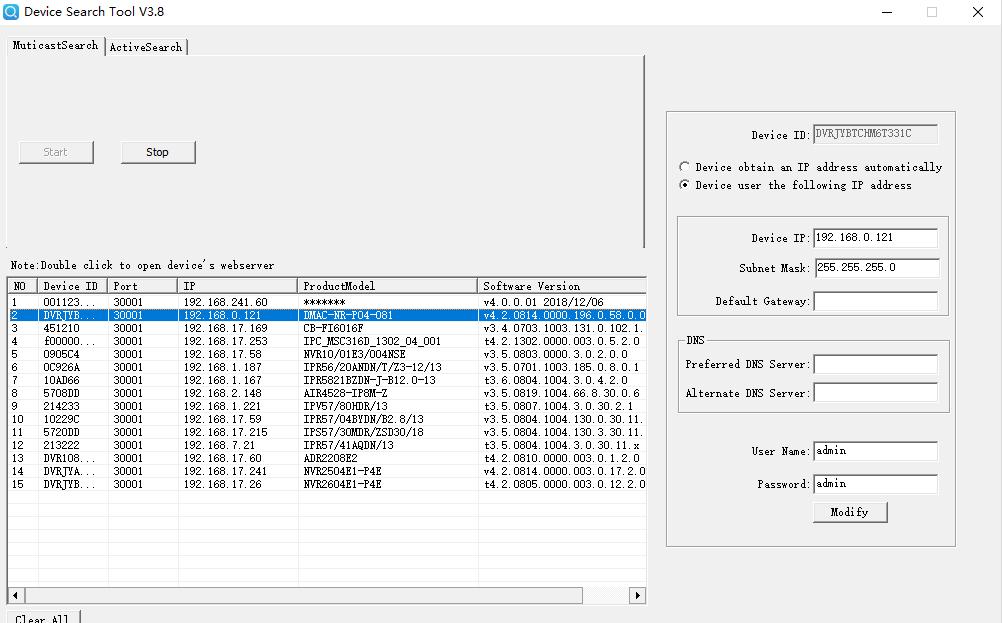
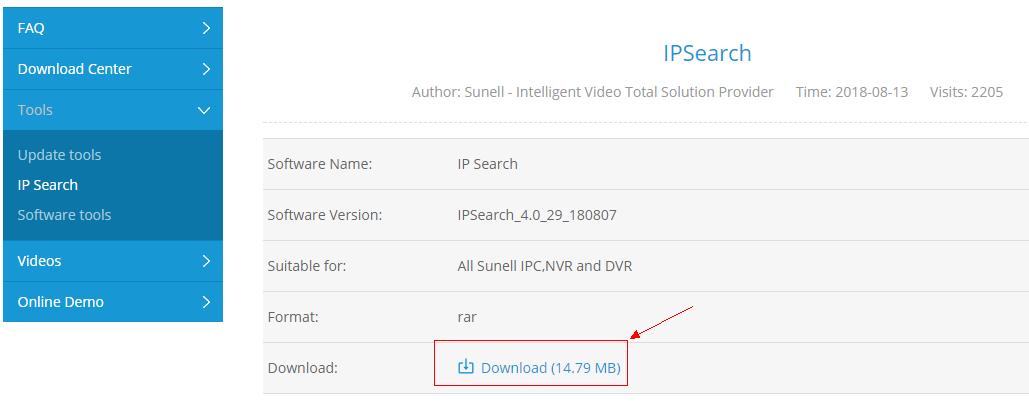
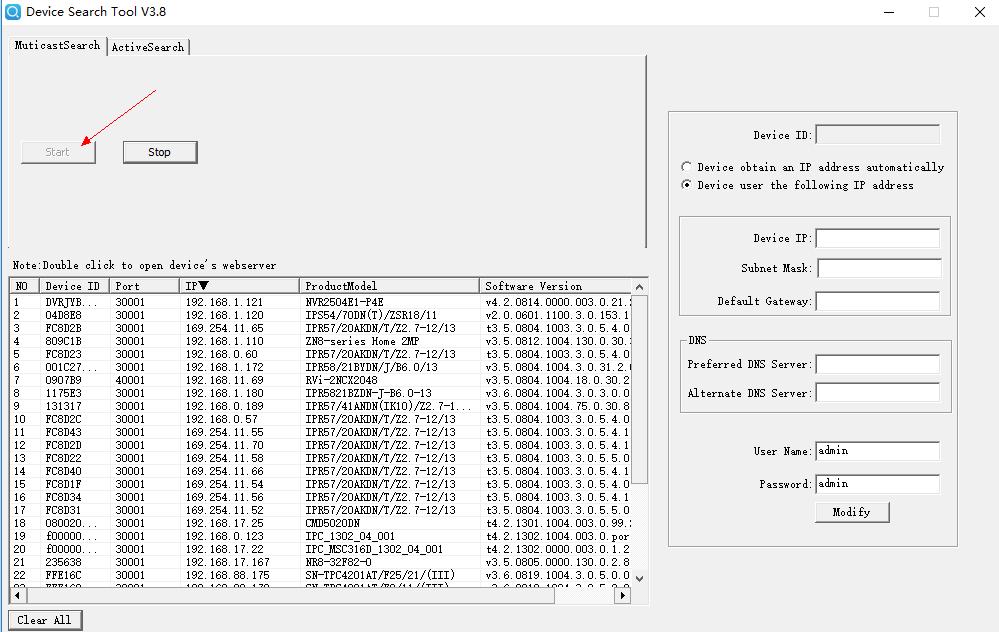
If camera is sunell camera, and you don't know the ip, please connect camera and PC at same local network(or directly connect camera to PC), using IPsearch tool to find the correct IP, then add it to NVR; If camera is from third party, please check if they provide tool to search the camera IP, Then add it to NVR by input the IP, user name and password of camera
1. L’alimentation de l’IPC n’est pas stable, par exemple, l’IPC consommera plus d’énergie la nuit avec la LED IR activée, ce qui peut entraîner une insuffisance d’électricité
, '2. Problème de bande passante réseau, les performances du mélangeur sont insuffisante
, '3. Problème d’appareil photo
If only the specified camera or channel has this issue, we recommend you replace with a normal camera to check
If offline issue happens randomly with all channel, we suggest checking reason 1 and 2
If offline happens to all channel at same time, please check if the camera is powered by centralized supply, please check the power status
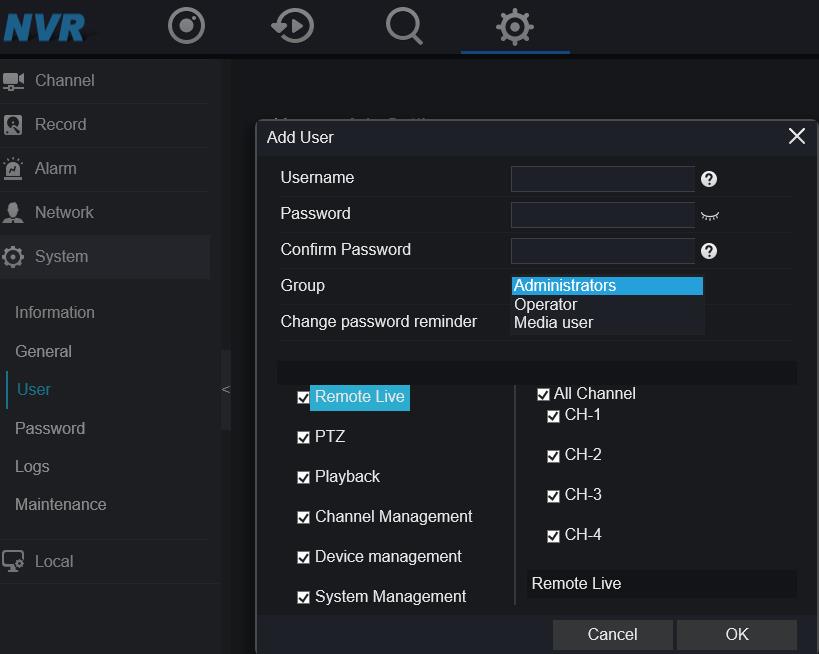
Dans System-User-Add
, '3 groupes d’utilisateurs différents peuvent être créés
, 'Administrateur/Opérateur/Utilisateur multimédia
, 'Administrateurs : Remote Live, PTZ, Playback, Channel Management, Device Management, System Management
, 'Operator : Remote Live, PTZ, Playback, System Management
, 'Utilisateur multimédia : Remote Live, Playback ; (n’oubliez pas que le compte administrateur est le superutilisateur, il ne peut pas être supprimé)
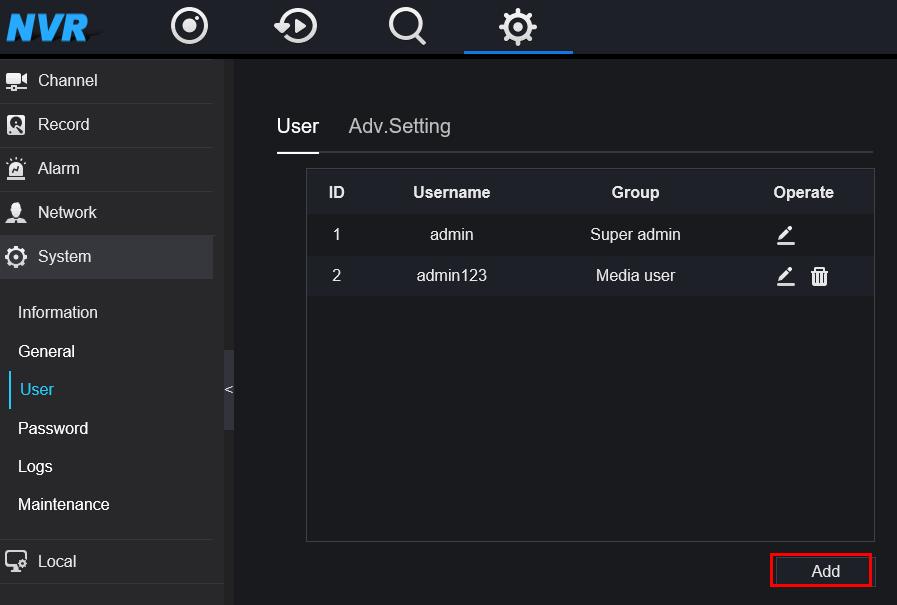
, 'Sélection du canal
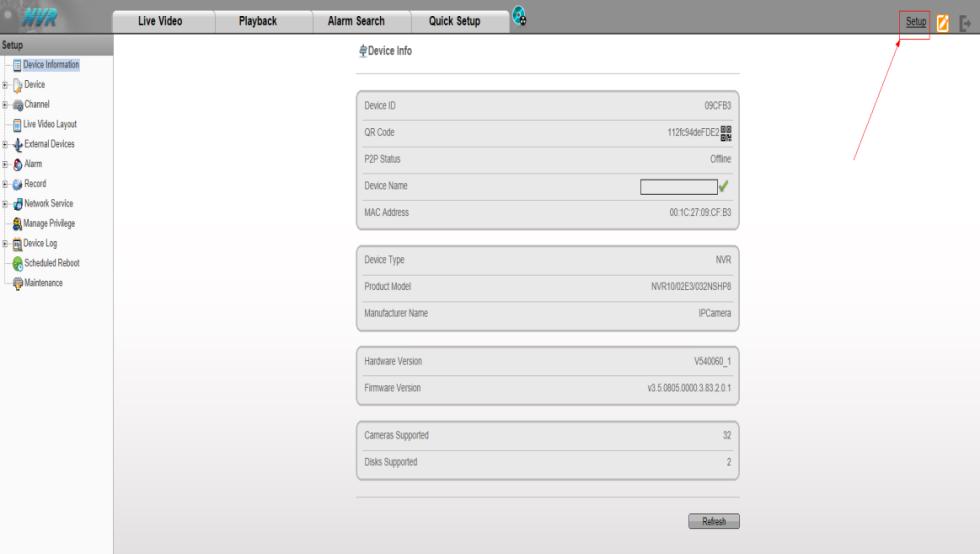
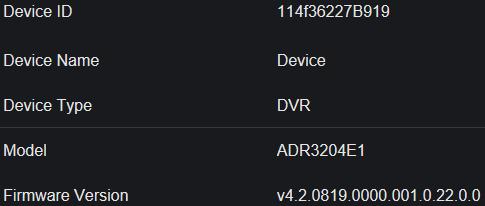
For old interface: go to "Setup"->"Device Information"
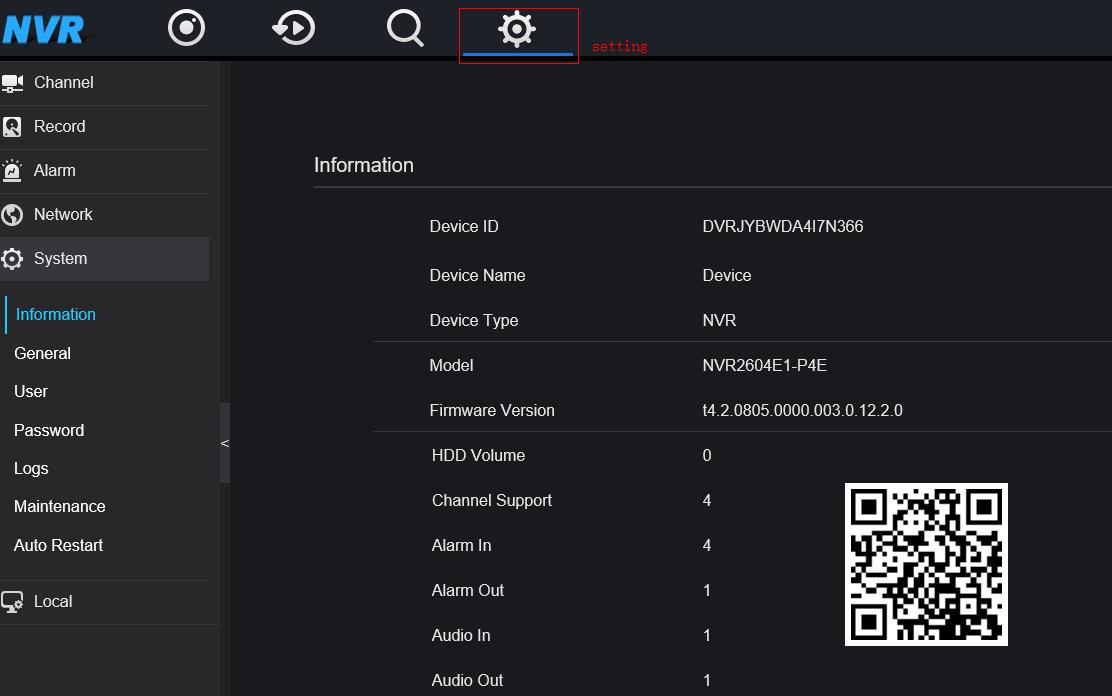
For new interface: go to "setting", then you can get Information
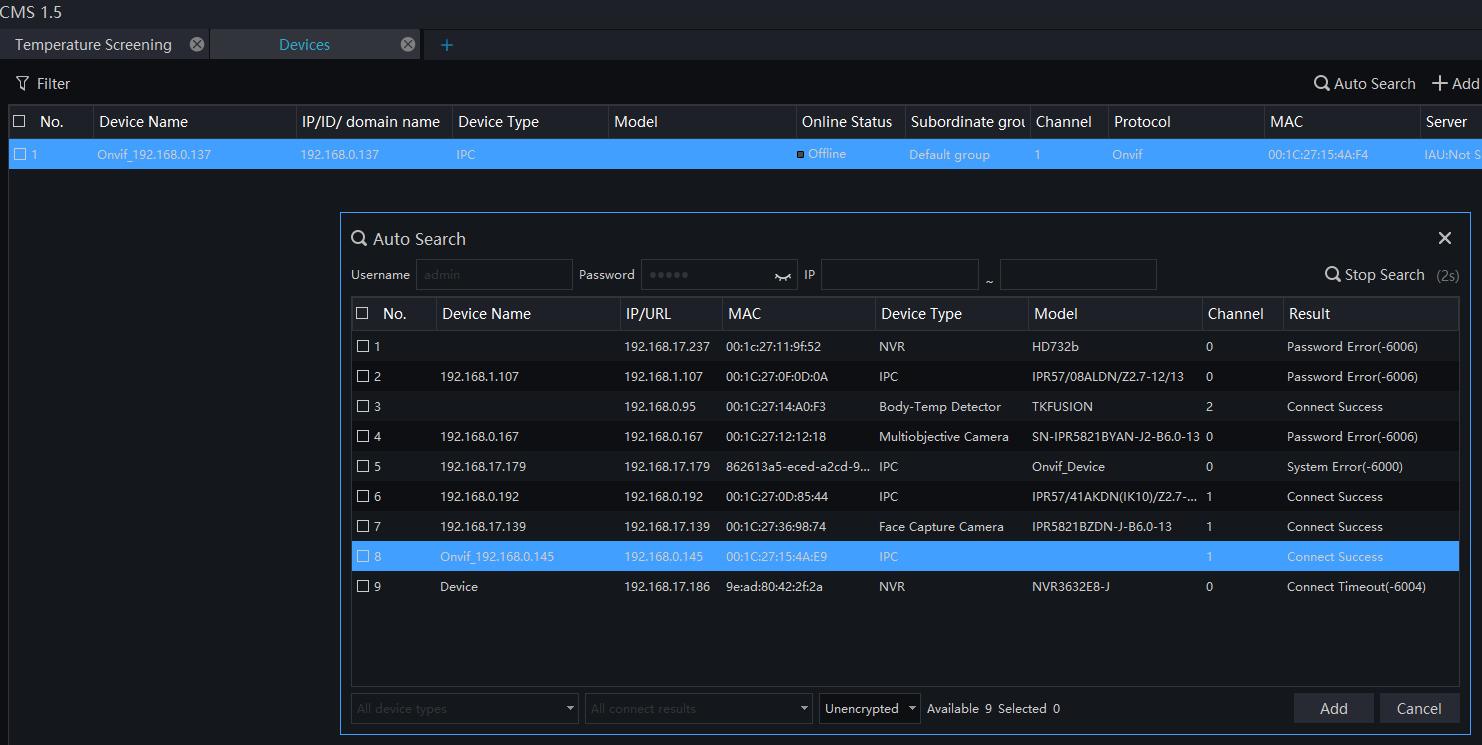
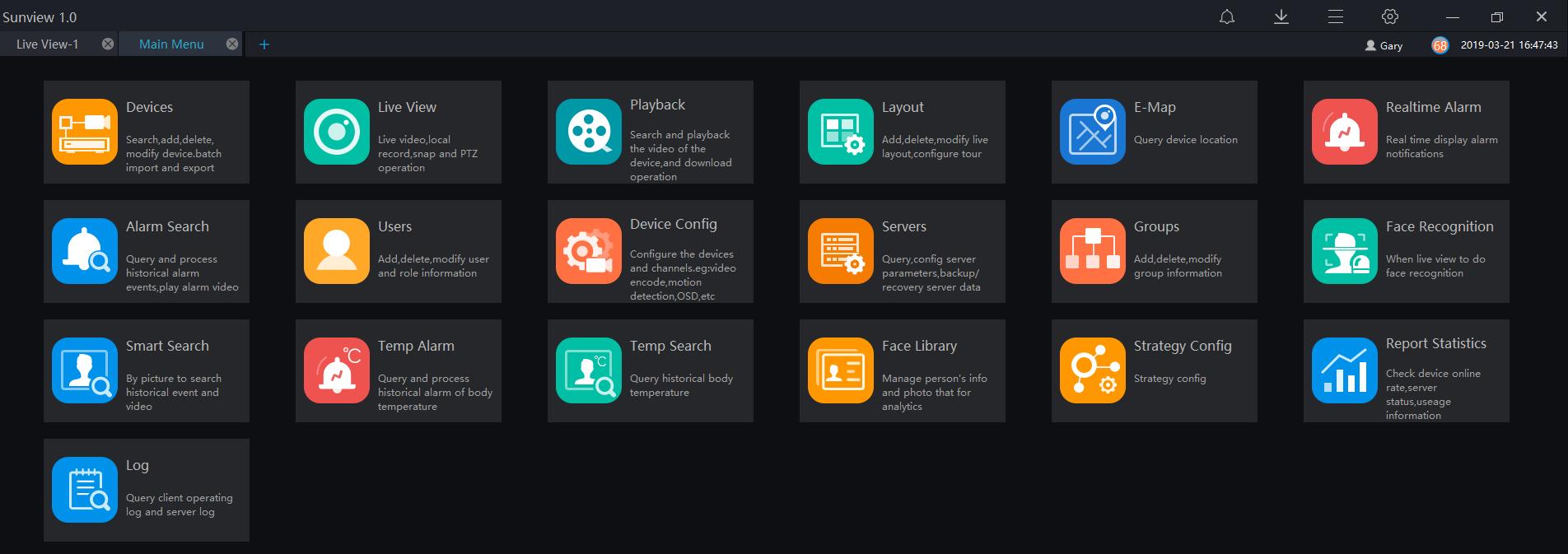
Exécutez le logiciel Sunvie
1. open "Devices" module
2. click "Auto Search" to find the IP Cameras
, '3. sélectionnez-l
4. click "Add" to add it to the device list
Détection des visages : Activ
Confidence Coefficient: Mid
Smallest Pixcel: 80
Image Matting Quality: Mid
Snapshot Mode: Timing
, 'Intervalle de téléchargement de l’image : 5
, 'Degré de lacet : 6
, 'Degré de titt : 6
, 'Réglage de la zone de détectio
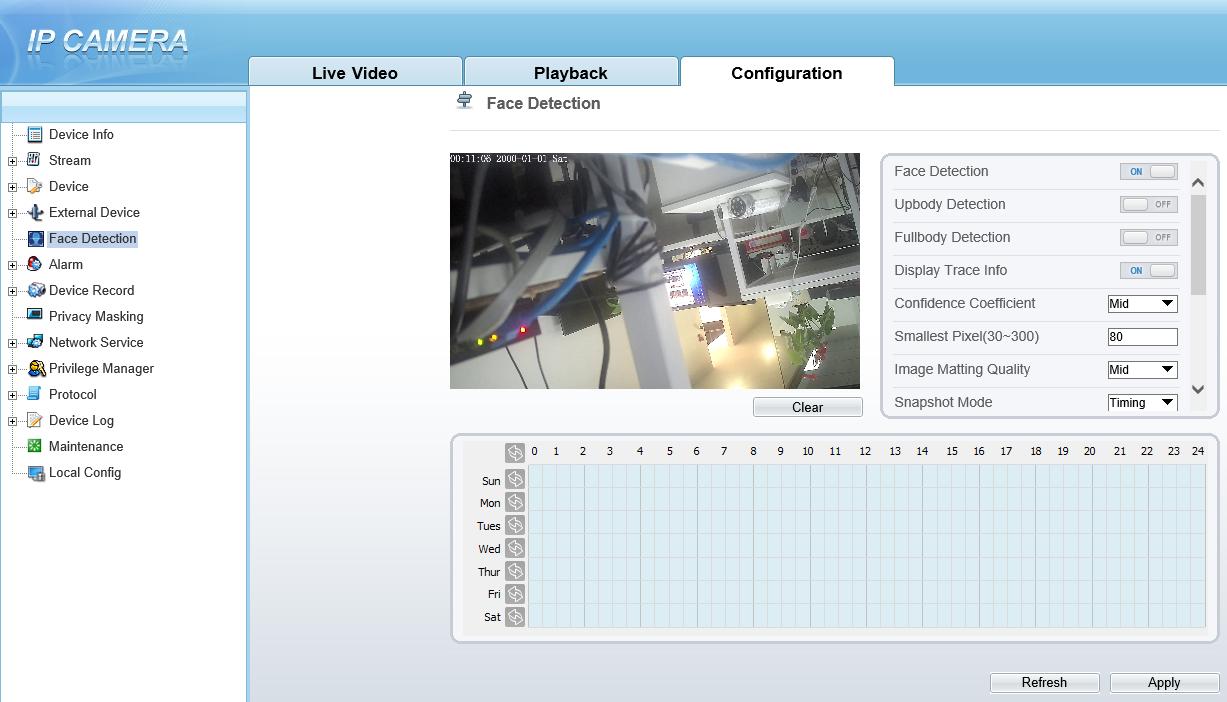
1. Détection des visages : Détectez le visage de l’humain
», '2. Détection du corps vers le haut : Détectez la partie du visage et de l’épaule de l’humain
», '3. Détection du corps entier : Détectez la forme humaine
, '4. Trace d’affichage : Affichez les informations de traçage
, '5. Coefficient de confiance : Sensibilité de détection des visages, la plage de valeurs est élevée, moyenne ou faible, plus la valeur est élevée, plus la sensibilité est élevée. Plus la valeur de sensibilité est élevée, plus le taux de détection sera élevé, mais plus il peut y avoir de fausses détections, telles que la fausse détection des motifs sur les vêtements des piétons sur les visages des adultes
, '6. Plus petit pixel : lorsque le pixel du visage dans l’image est inférieur à la valeur définie (le pixel minimum pour la reconnaissance faciale), il n’est pas capturé
, '7. Mode instantané : Il existe deux types de synchronisation et optimal
, '8. Intervalle de téléchargement de l’image : 1 ~ 10 sec
, '9. Degré de lacet : Définissez l’angle de la face pour filtre
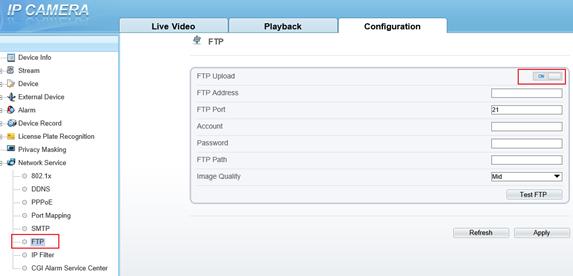
, '10. Cache d’image de téléchargement FTP : Activer ou désactive
, '11. Téléchargement FTP de l’image entière : Activer ou désactive
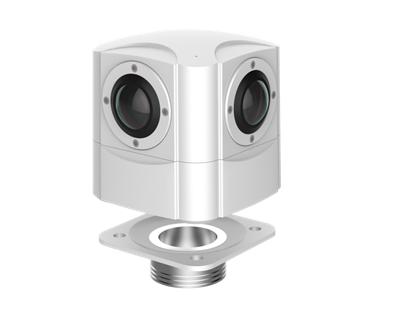
1. lResolution 8K@30fps
, '2. lH.265 Smart Encod
, '3. lChamp de vision horizontal 360° + vertical 360
4. Edge Panoramic Splicing Image Output
5. Minimum Object Focus Length 1m
6. Support View Mode 180°, 360°, Fisheye, Planet, Auto Tour
7. POE Power Supply
, '8. IP66, -40°C~60°
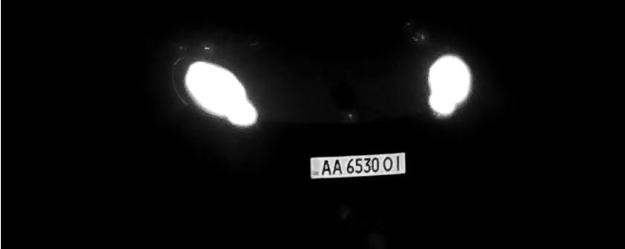
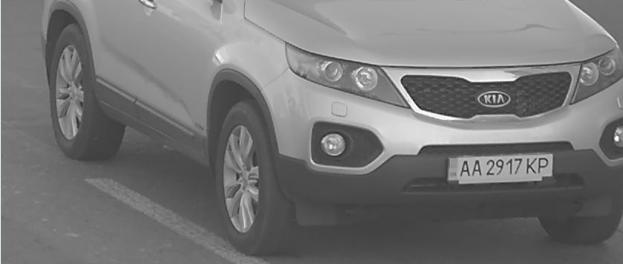
1. La plaque d’immatriculation doit être lisible et bien éclairé
, '2. Les dimensions de la plaque d’immatriculation doivent être d’au moins
* 150 pix for rectangular plates and 100 pix for two-row plates (for Russia, Kazakhstan, Armenia, Uzbekistan, Serbia).
* 130 px for rectangular plates and 70 pix for two-row plates (for all other supported countries).
, '3. Inclinaison autorisée de 5 degrés (dans le sens des aiguilles d’une montre et dans le sens inverse)
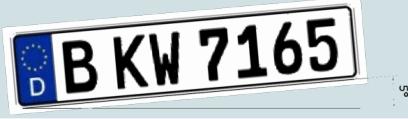
, '4. Angle vertical et angle horizontal : ne doit pas dépasser 30 degrés
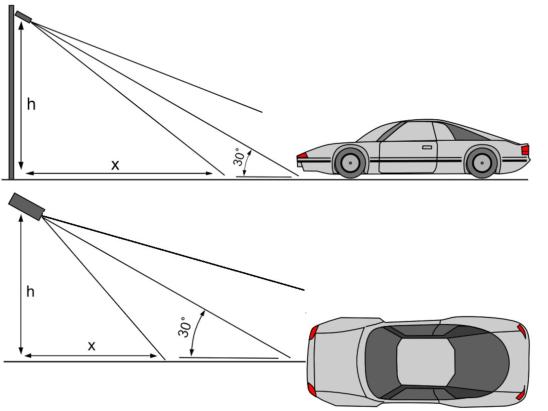
, '5. Exemple de bonne plaque d’immatriculation de jour comme de nui
1. Il se peut que le DVR ne reconnaisse pas correctement la source du signal d’entrée et doive rebrancher et débrancher le câble BNC
, '2. C’est peut-être le problème de la ligne coaxiale, donc la ligne coaxiale doit être remplacé
, '3. Le DVR peut ne pas prendre en charge la source d’entrée de la caméra HD coaxiale (y compris le mode de signal, la résolution, la fréquence d’images). Il est nécessaire de basculer le mode de signal sur CVBS via le commutateur à cinq voies de la caméra, puis de passer à la source d’entrée correcte via le menu OSD de la caméra
1. Call through UTC function of DVR
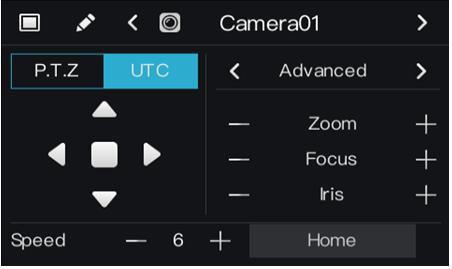
, '2. Appelez via l’interrupteur à cinq voies de la camér
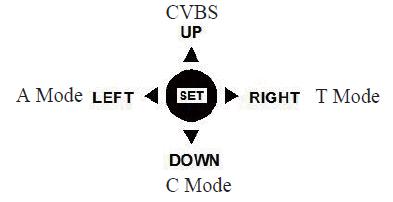
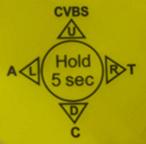
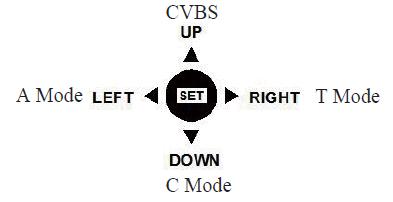
La caméra prenant en charge la commutation du signal coaxial vers le signal analogique aura un commutateur à cinq voies, comme indiqué sur la figure. Si une sortie analogique est requise, appuyez sur la touche de réglage pendant 5 secondes pour basculer la source sur CVBS. S’il n’y a pas de commutateur à cinq voies, la caméra ne prend en charge que la sortie de signal coaxial
La paire torsadée est utilisée pour transmettre le signal HD, et l’image est facile à perturber, il n’est pas recommandé d’utiliser une paire torsadée pour transmettre le signal HD
Le signal HD appartient au signal haute définition, qui est plus sensible aux interférences que le signal CUBS commu
, '1. Vérifiez si la ligne électrique et la ligne BNC sont en parallèle, de sorte que le courant alternatif (220 V et plus) affecte le signal HD et séparez le tuya
, '2. Contourner la source d’interférence
, '3. ajouter un brouilleur, réduire les interférence
, '4. Il est recommandé de transmettre le signal par fibre optiqu




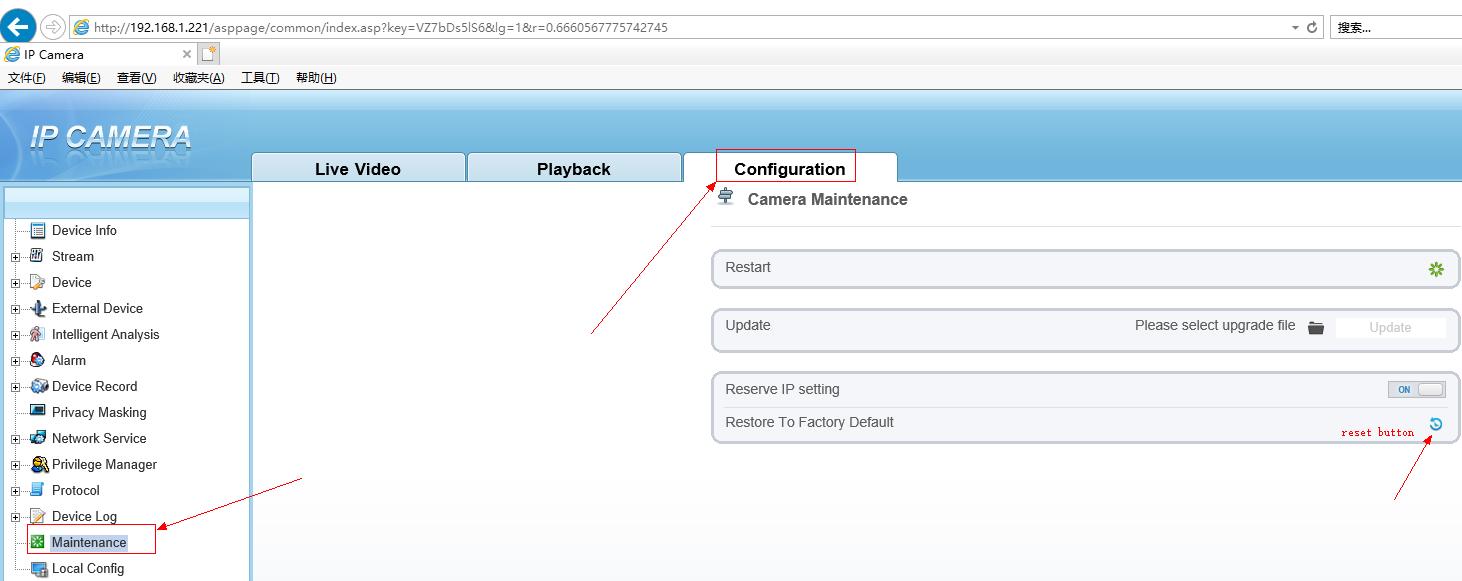
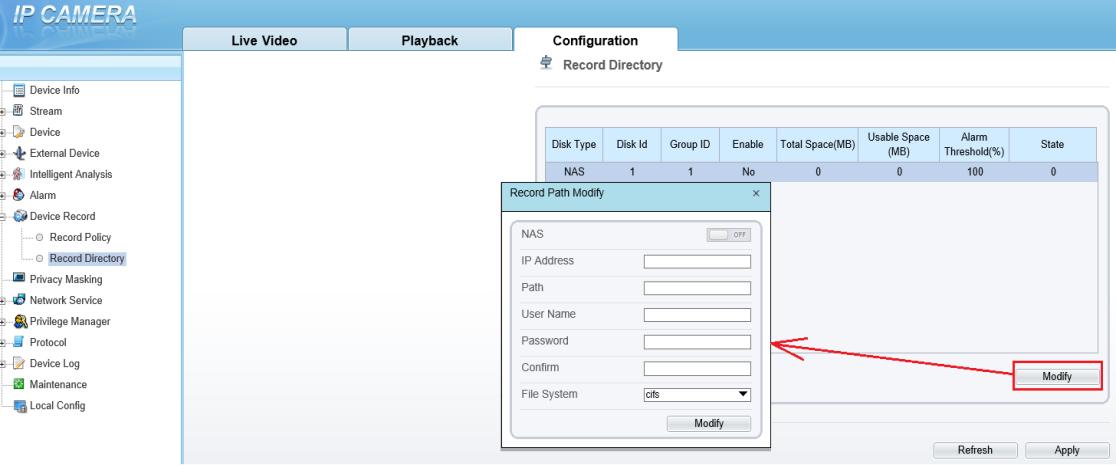
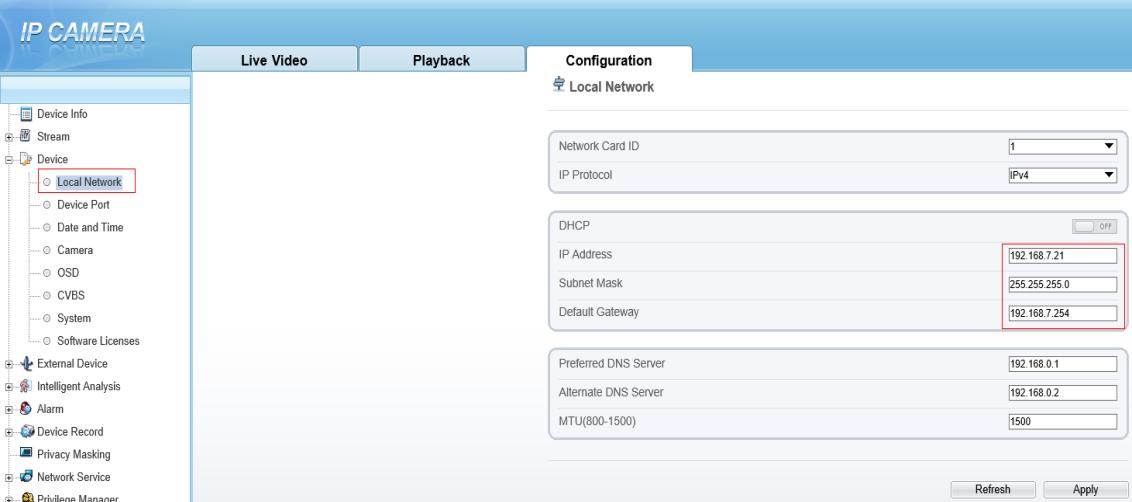
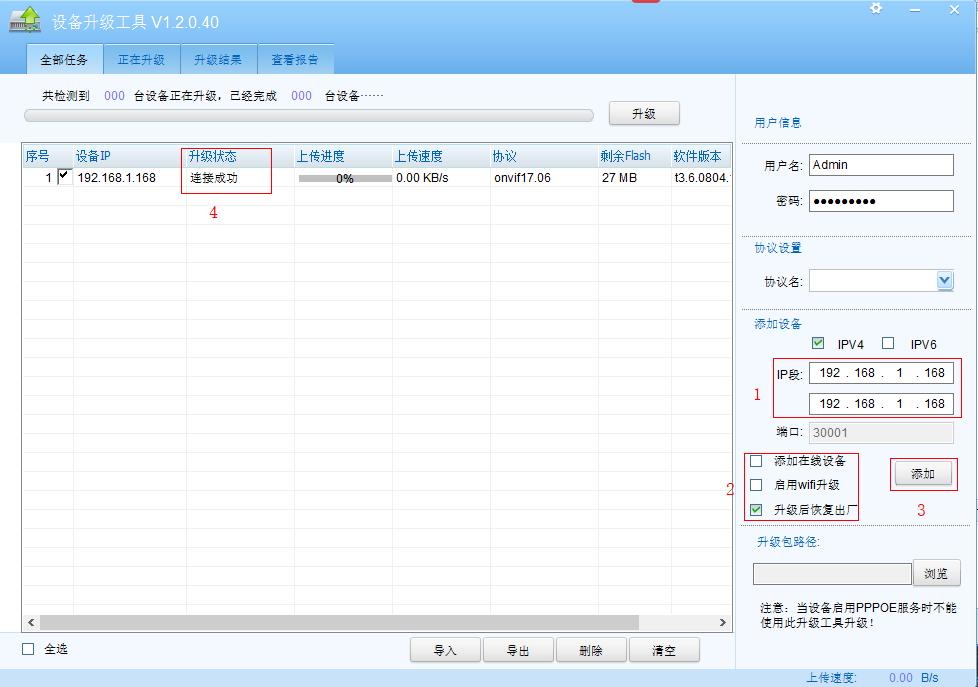

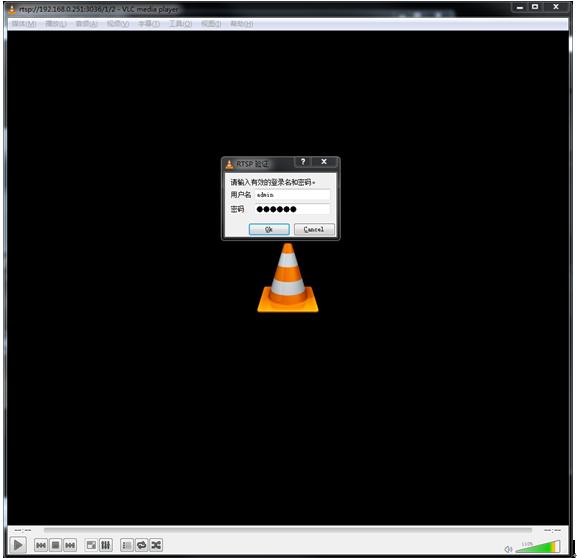
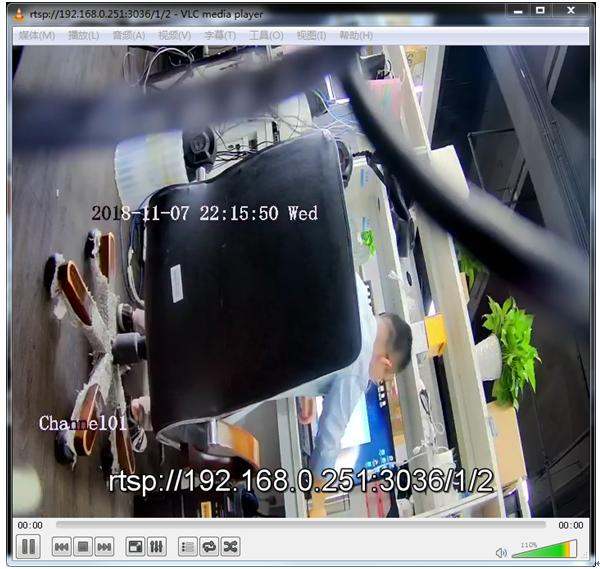
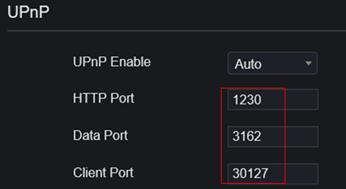
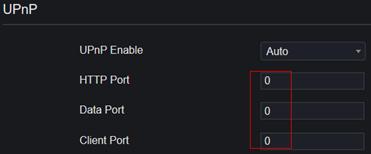
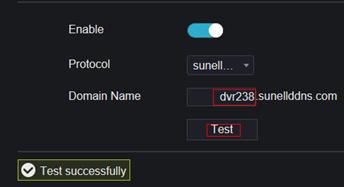

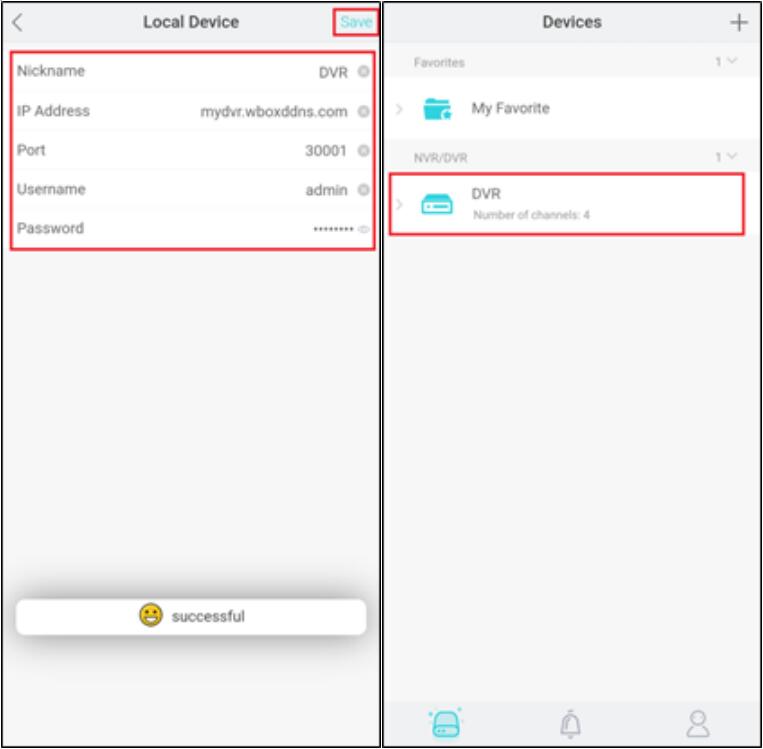
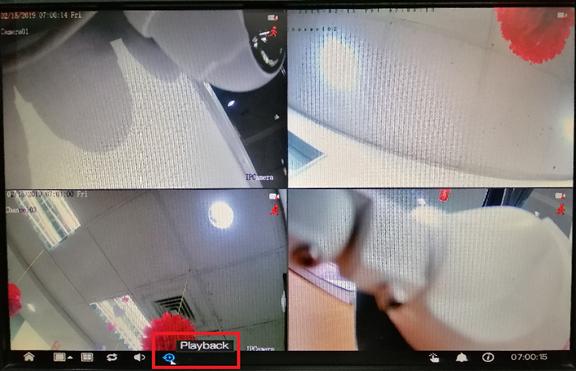
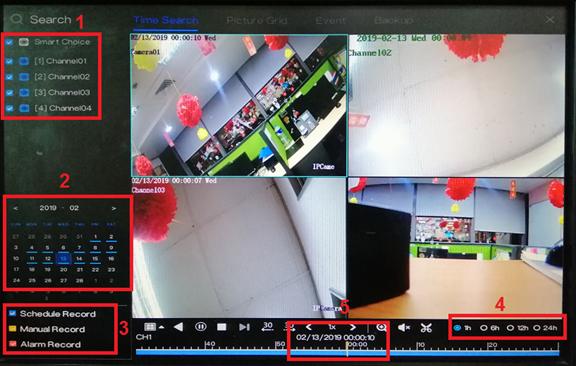
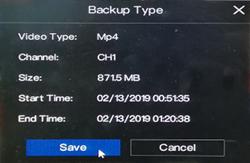
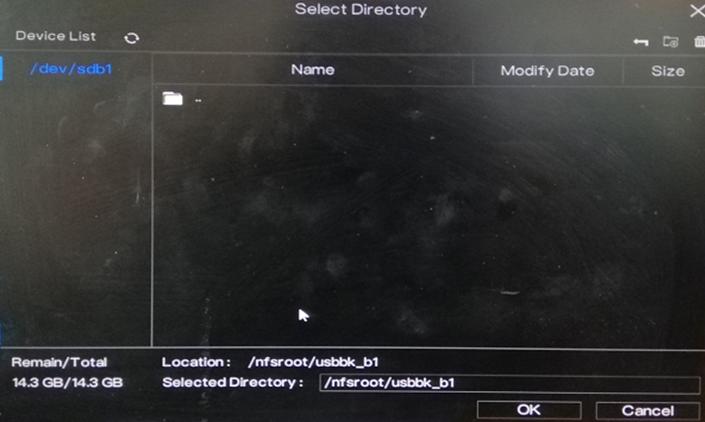
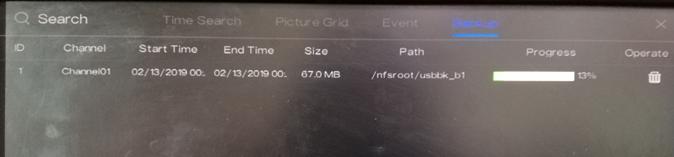
 icon (Start Backup) to start the backup process.
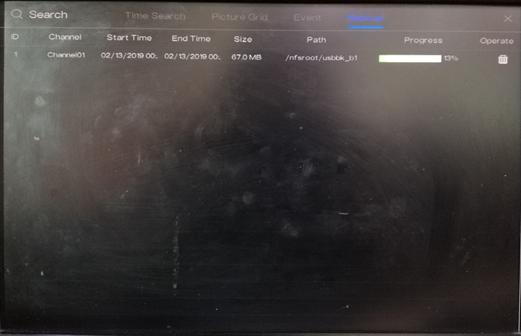
 (End Backup) icon to save the recording.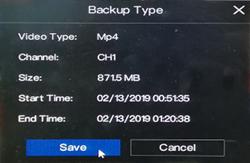
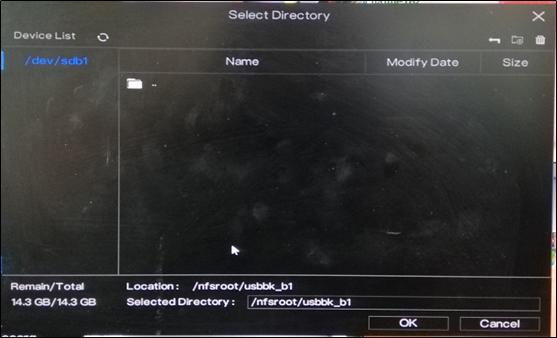


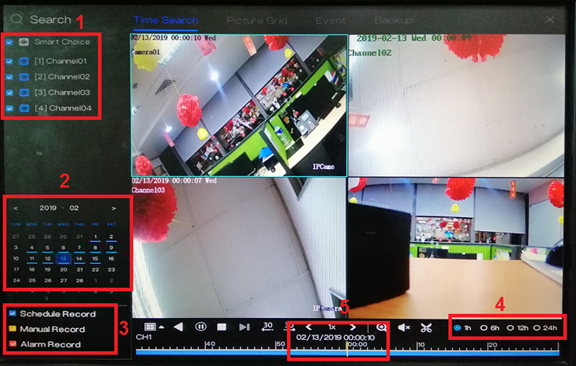
 (Start Backup) to start the backup process.
 (End Backup) icon to save the recording.